How to Organise Your Content Library for Social Media (and Stop Re-uploading the Same Photos)
Most people quit posting because every post takes 25 minutes hunting for the right image. Here is how to build a content library that cuts post time in half — what to put in it, how to sort it, and the mistakes to avoid.
You're three months into posting consistently. Your camera roll is now 14,000 photos deep. Half are receipts, half are screenshots, and the actually useful brand creative is buried somewhere between a boarding pass and last week's dinner.
Every time you sit down to write a post, you scroll. Sometimes for ten minutes. Sometimes you give up and reuse a photo you've already posted four times. Or worse — you skip the post altogether because the friction is too high.
A real content library — set up once, then maintained — solves all of this. Here is how to build one for social media, what to actually put in it, and the mistakes to avoid.
Why a messy library is the silent tax on consistent posting
Most people don't quit posting because they can't write. They quit because every post takes 25 minutes instead of 5, and that 20-minute gap is where consistency dies.
The breakdown usually looks like this:
- 5 minutes to write the post
- 15 minutes hunting for the right image
- 3 minutes second-guessing whether you've already used it
- 2 minutes re-uploading something you already had on file
Solve the image problem and you cut post time in half. Solve it across a team and you cut a manager's life in half.
What "organised" actually looks like
An organised content library has four traits:
- Single source of truth. Every photo and video lives in one place. Not your desktop, not WhatsApp, not last month's Dropbox folder.
- Sortable by purpose, not date. "Product shots", "team", "behind-the-scenes", "founder candids" — not "April 2026".
- Easy to pull from while writing a post. If the workflow is "compose post → switch tab → search → drag → wait → upload", you've already lost. It should be one click from where you write.
- Shared correctly. Brand assets accessible to everyone who posts; personal photos only to the person who shot them.
Step-by-step: build a content library for social media
1. Pick a single home
Pick one tool and commit. The options most teams reach for:
- A shared Google Drive folder — works, but slow to search and clunky when posting
- A Notion gallery — better, but still a tab-switch away from your composer
- Your social media tool's built-in library — best, because the creative lives next to where you publish
The wrong answer is "all of the above". Pick one. Migrate everything that matters. Delete the rest from your mental map.
2. Tag by what you'll actually search for
Don't sort by date. You will never search "what did I shoot in April". Sort by use:
- Founder candids — you, on camera, in your element
- Product shots — clean, lifestyle, in context
- Team and culture
- Behind-the-scenes
- Customer / case study
- Event / speaking
Five to seven categories is the sweet spot. More and you'll forget where to file new uploads. Fewer and you'll have to scroll.
3. Decide what's shared and what's personal
If anyone else posts on behalf of your brand, you need two layers:
- Shared brand library — logos, product shots, evergreen photography that anyone can pull from
- Personal libraries — each team member's own candids, behind-the-scenes, family-of-the-business shots
This is not a nice-to-have. Without it you get either chaos (everyone uploads everything to one bucket) or paralysis (no one can find anything without asking the marketing manager).
4. Make new uploads a one-step ritual
Every time you shoot something usable, drop it in the library immediately. Not later. Not when you're back at the desk. In the moment.
The best content libraries are the ones whose owners treat "upload to library" the way they treat "send the email". Routine, fast, done.
5. Make selection one click when posting
This is where most setups break down. If selecting an image while writing means switching tabs, downloading, then re-uploading, your library is theoretical.
The fix: use a tool where the library is one click away from the composer. Anything else and you'll keep uploading from your camera roll out of habit.
The mistakes I see most often
- Per-channel folders. "LinkedIn", "Instagram", "Facebook" — total trap. The same photo works across channels. Sort by content, not destination.
- No naming convention. "IMG_3947.jpeg" tells you nothing. Rename uploads, or use a tool that lets you tag them.
- No shared layer for teams. When the marketing manager is the only one who knows where the logo lives, everyone wastes time.
- Treating the library as one-off setup. A library is a habit, not a project. Maintain it weekly or it rots in a month.
The shortcut: let your tool do the organising for you
Most people don't have time to maintain a manual library. That's why we built one into Magic Marketer App.
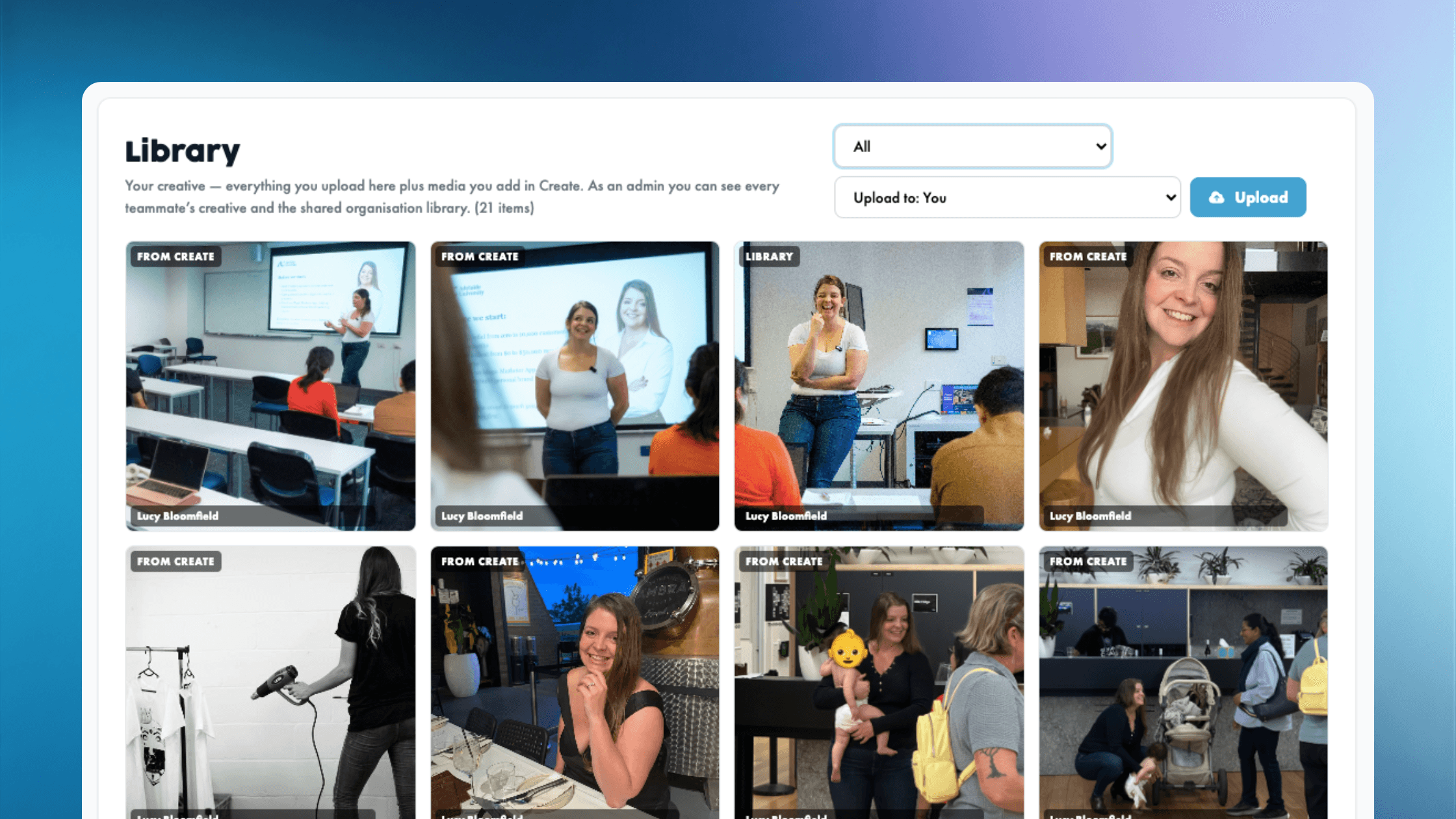
Every photo and video you upload inside a post goes straight into your Library automatically. Drag a fresh batch in any time. When you sit down to write a post, the library is one click from the composer — pick the shot, attach, ship.
If you're running content across a team, the Library splits into three layers: your personal creative, the shared organisation library (brand assets), and every teammate's library (so admins can see and contribute). The Monday Drafts engine reaches into your library on its own — your weekly drafts arrive with your own photos attached, not blank.
Full feature breakdown is in the Library launch post.
Get started
Pick your home, sort five buckets, drop in what you've shot in the last 90 days. Twenty minutes today saves you twenty minutes every week from here on.
If you'd rather skip the setup, start your free trial of Magic Marketer App and let the library build itself as you post.

Ready to show up consistently?
Daily content for every person on your team — without the blank screen.












Pay monthly. Custom invoicing available for large teams.

About the author
Hello, I'm Lucy Bloomfield — Founder of Magic Marketer
I built Magic Marketer for experts who have something to say but don't want to stare at a blank screen. You've got the experience and the stories; you just need one clear idea a day and a simple way to show up.
My mission is to help 100,000 professionals build visibility and credibility — without turning content into a second job. One decision. Daily results.